 BlurShotChrome extension
Blur what you would rather not share.
BlurShot is a Chrome extension that crops any region of a web page with Cmd+Shift+S, blurs or pixelates it on the spot, and saves it. From crop to save, the image never leaves the browser.
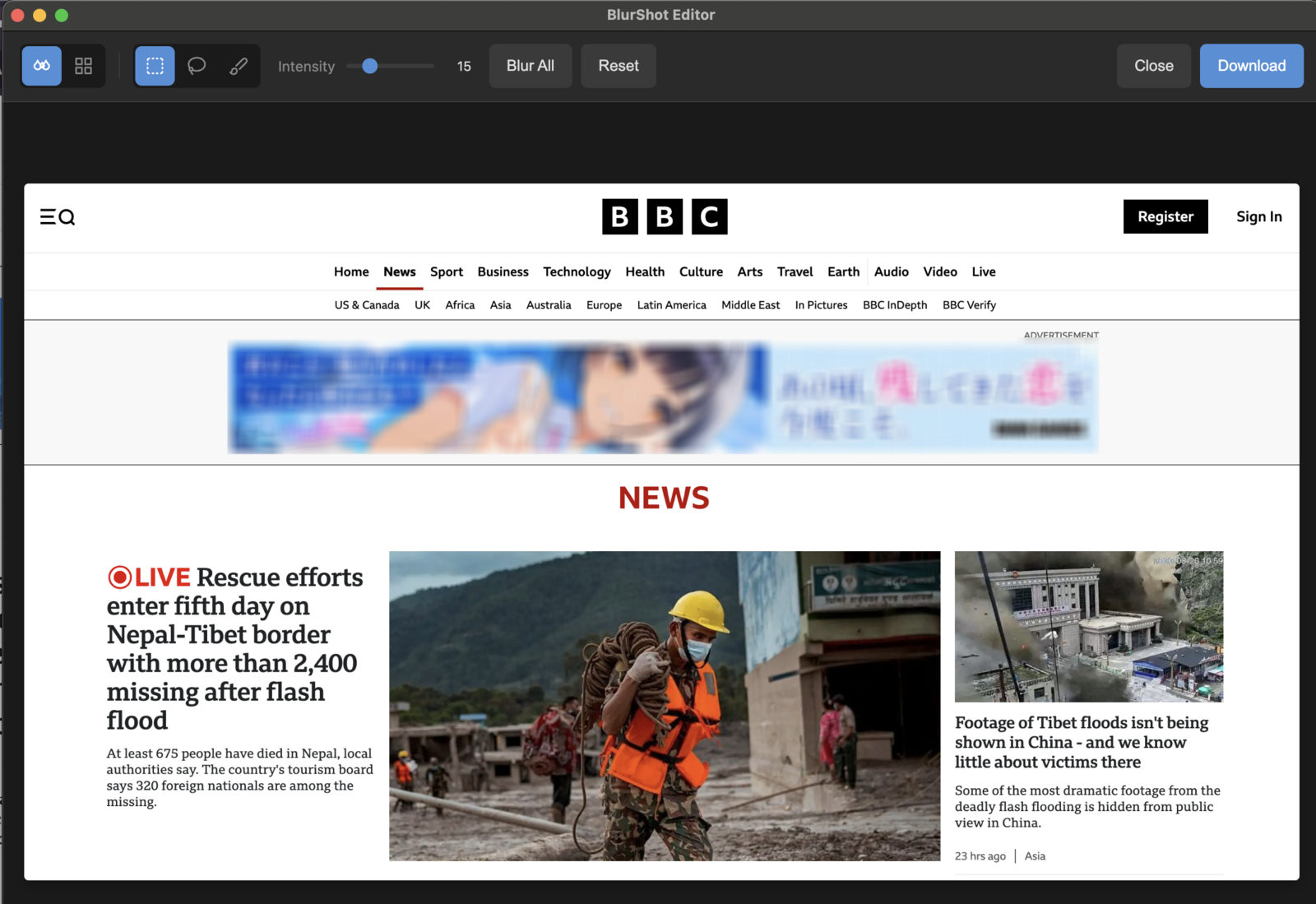
Do any of these happen before you hand a screenshot over?
Crop, hide, save — one continuous move.
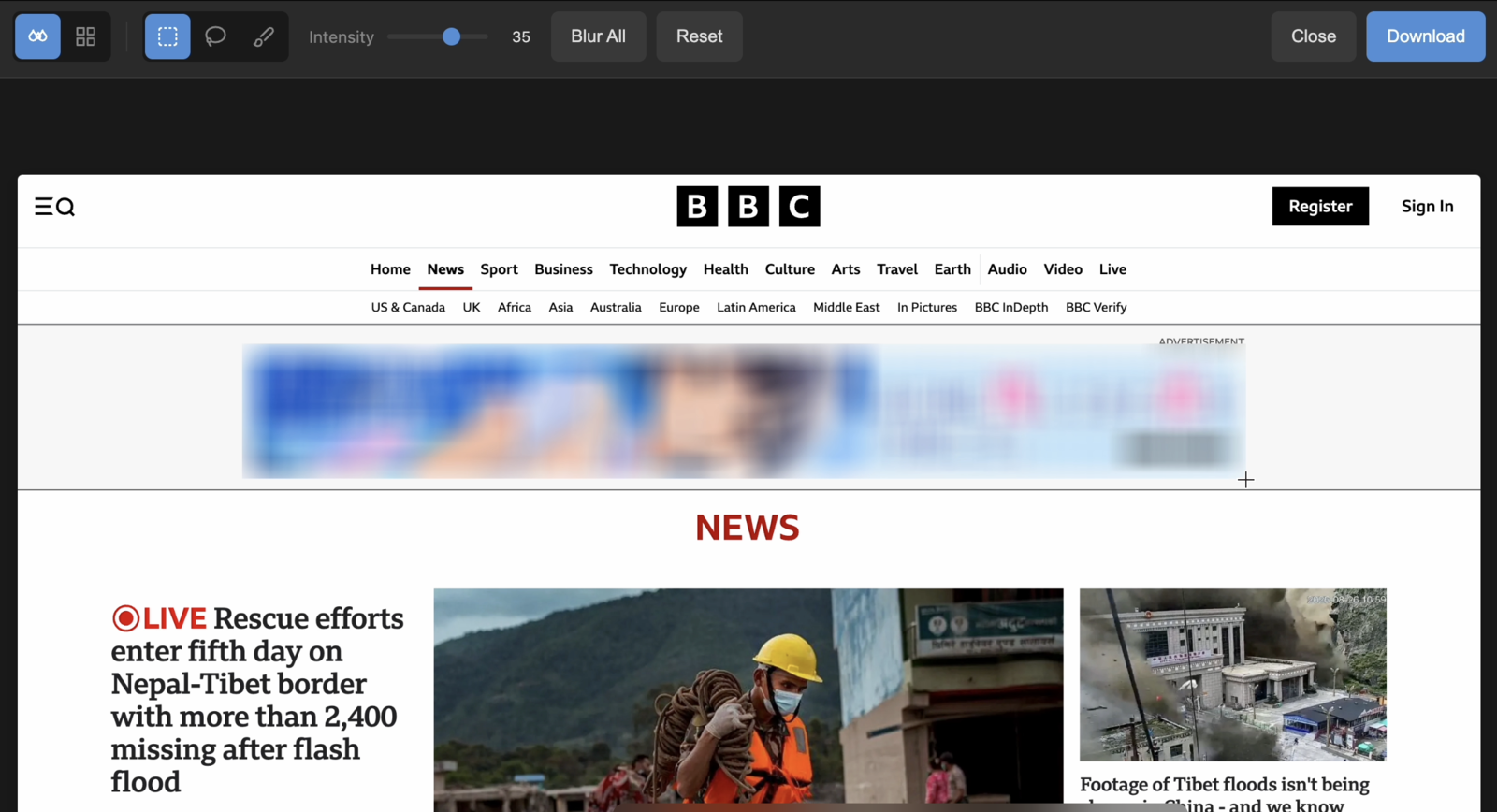
Press Cmd+Shift+S, drag a region, and the crop opens straight into the editor. Painting over what should go and downloading the result takes no other app.
Why it works
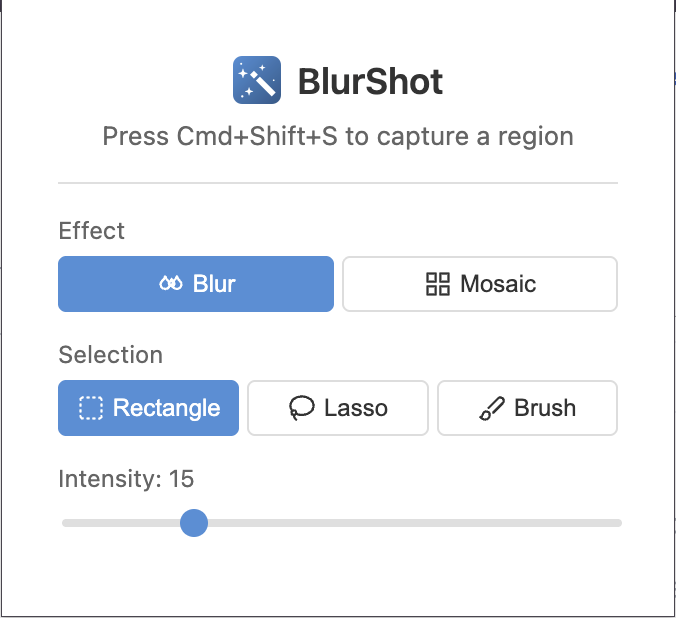
A rectangle takes a block of text in one drag, a lasso traces a shape that will not sit in a box, and a brush paints straight over the fiddly parts. You can mix all three within a single image.
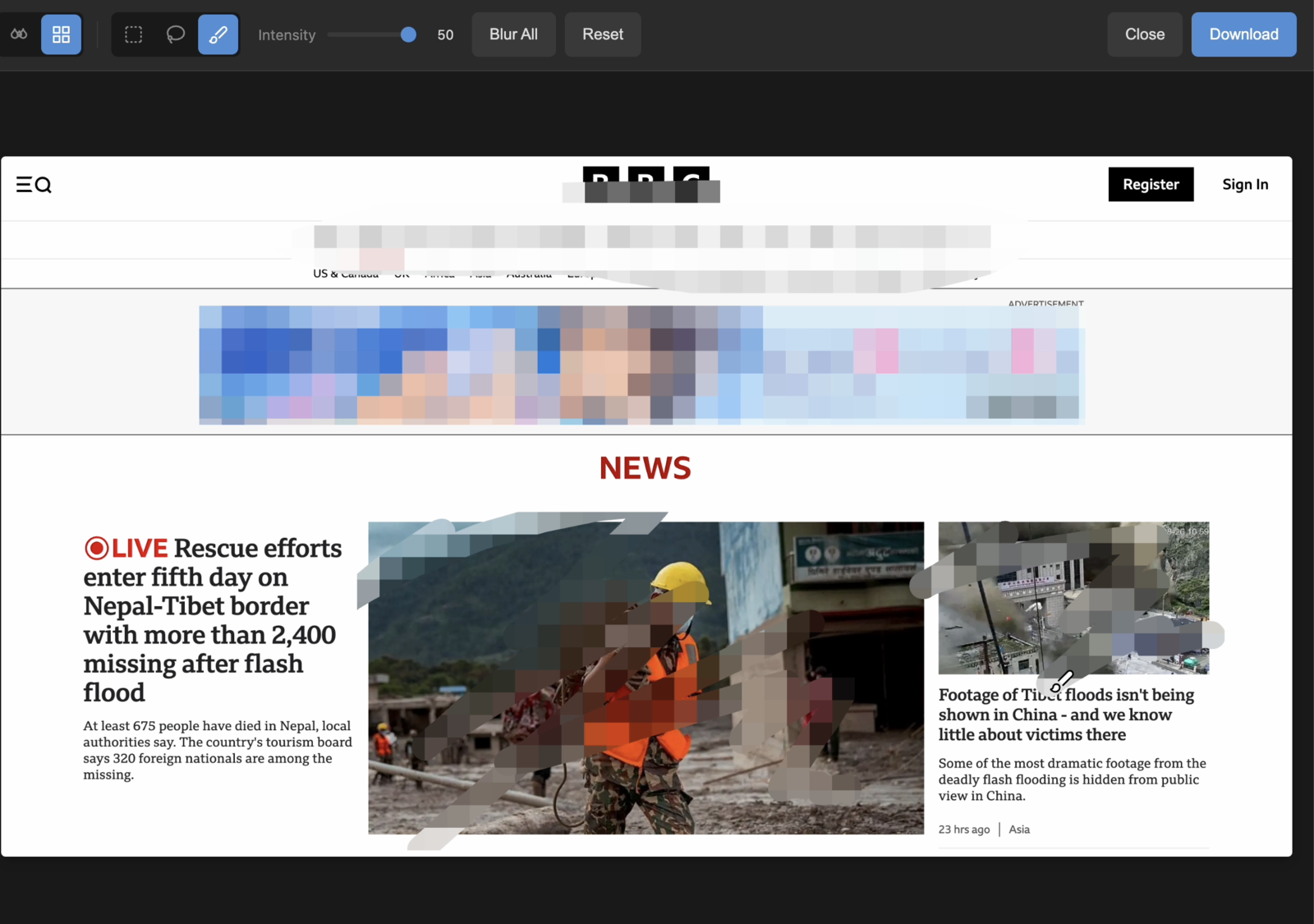
Switching between blur and mosaic, and moving the strength anywhere from 5 to 50, both work after the areas are drawn. Everything already hidden is redrawn together, so nothing has to be undone and painted again.
Cropping, editing and saving all happen inside the browser. There is no networking code at all, so there is no upload, no tracking and no usage collection.
Key features
What it asks for, and what happens to the image
- Requirements
- A Manifest V3 extension, published on the Chrome Web Store.
- Permissions used
- activeTab, storage and scripting — those three. It does not ask to read every site, nor to see your browsing history.
- What runs on your pages
- None of the extension's code enters a page until you press the shortcut. Only then does it place the selection overlay on that one tab.
- What gets captured
- Only the visible part of the tab you are looking at. Nothing below the fold, nothing in a background tab, nothing outside the browser.
- Where the image goes
- The crop is placed in extension storage once, for the editor to pick up, and is deleted the moment the editor reads it. What stays behind is your effect, selection tool and strength settings.
- Network traffic
- There is no networking code. Neither the image nor a record of what you did leaves the browser.
- Pages it cannot run on
- Pages Chrome does not let extensions run on — chrome:// settings screens and extension pages among them — are out of reach.
- Price
- Free.
Try it
Add it from the Chrome Web Store.
Asks for activeTab / storage / scripting · The image never leaves the browser · Free