 HikidashimacOS app
Everything your Mac kept, in one list.
What you copied, what you captured, what you downloaded. Take it from the history, newest first, instead of tracing where it landed.
Coming Soon
FUNCTION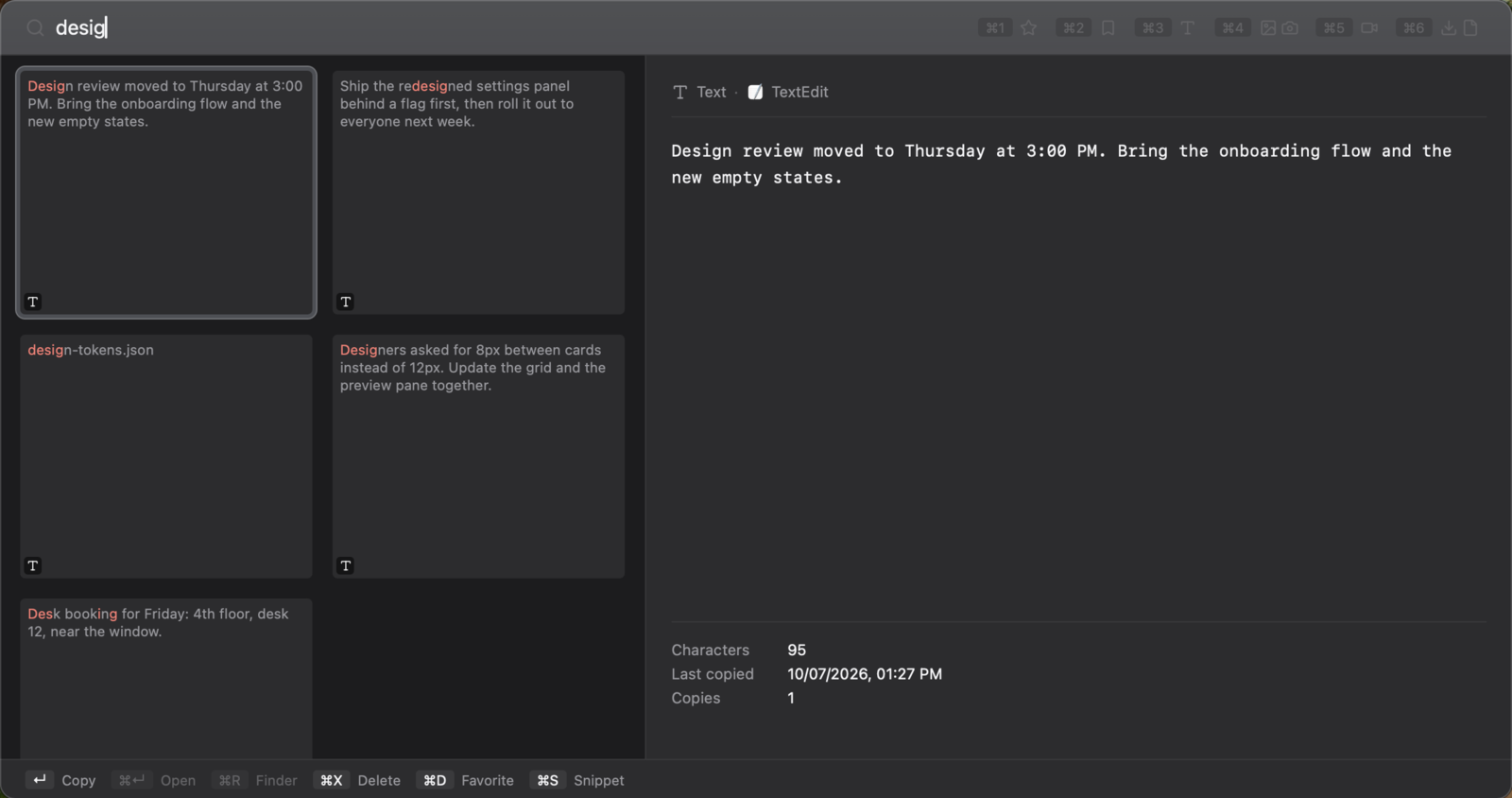
What You Can Do
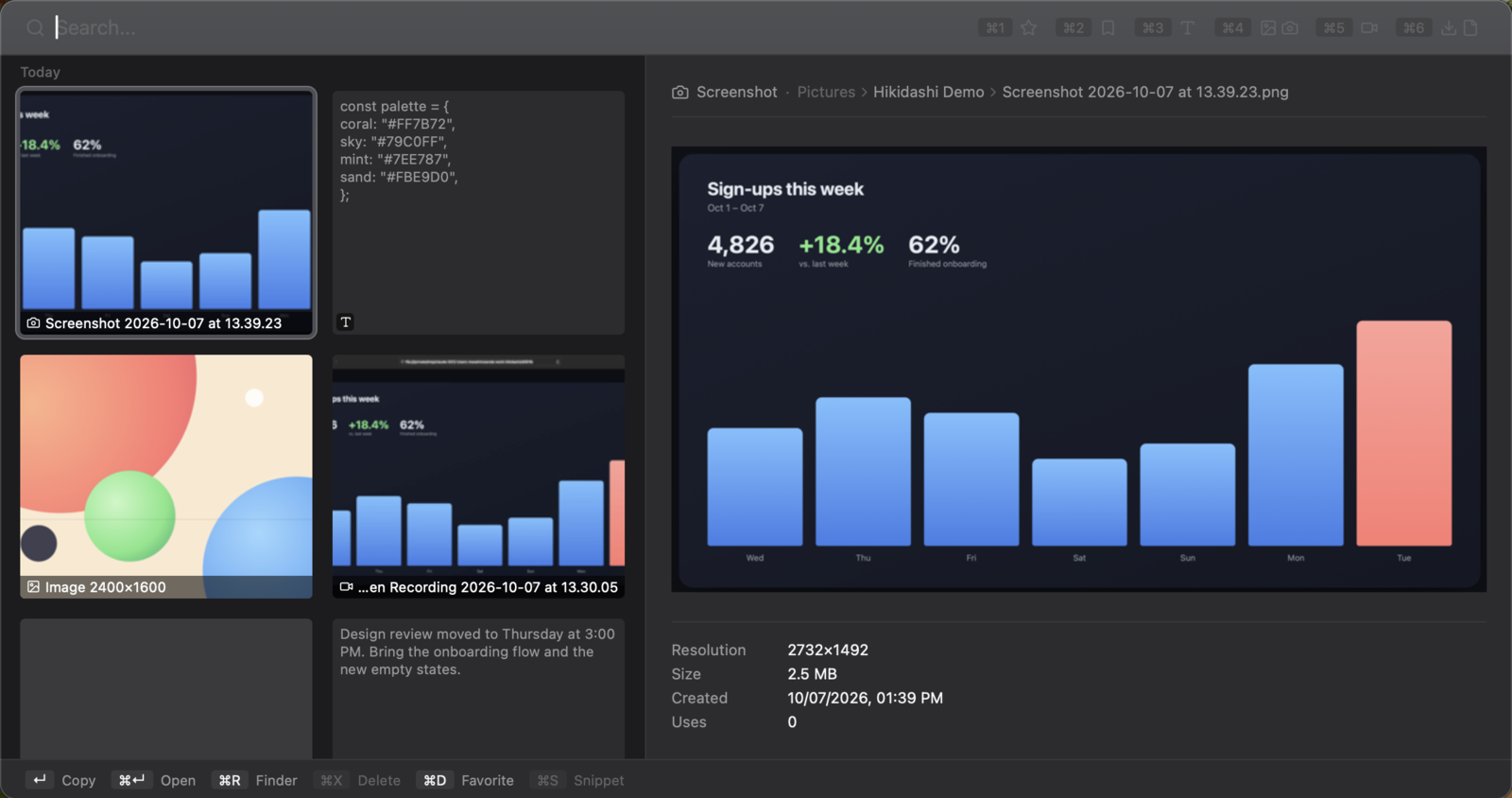
One Timeline Across KindsClipboard entries, screenshots, screen recordings, and downloads land in a single timeline. There are no per-kind tabs, so a key never changes meaning.
Narrow It As You TypeFilter with what you type. Letters may skip, as long as their order holds, and the matched parts are highlighted. Japanese entries carry their reading, so romaji reaches them too.
See It Before You Take ItA preview of the selected entry sits on the right. Video shows a frame from inside it and other files render through QuickLook, so nothing has to be opened. ↵ copies it and ⌘R reveals it in Finder.
Keep the Lines You ReuseSave a row as a snippet and later copies never push it out. The text itself is editable in a window of its own.
What it needs, and how it handles your data
- Operating system
- macOS 13 (Ventura) or later.
- Permissions
- The key that opens it needs no permission. To record copies on macOS 15.4 and later, set Hikidashi to Allow under Paste from Other Apps in System Settings. To take in screenshots, screen recordings and downloads, choose the folders they are saved to, in setup or in Settings.
- Where the data lives
- Hikidashi makes no network connections. The history stays on this Mac.
- Passwords
- Nothing is recorded while an app you name is frontmost. The "do not store" marker password managers attach to a copy is honored too, with nothing to configure.
- How much is kept
- Set how many entries to hold (0–10,000) and for how long (30 days, 90 days, or forever). Anything past that goes on its own, rows you marked as favourites stay, and clearing all of it is one action.
- Price
- Buy once, use forever. No subscription.